
How to use AI for product design: 7 use cases
Learn how to use AI for product design 7 different ways. Turn your ideas into working prototypes faster with prompt-based design and collaborative creativity.
Skip to main content
Building with AI

Ask an AI design tool to build a checkout flow, and you’ll get a checkout flow. It just won’t look like yours. The buttons will be the wrong shape, the spacing will be off, and the tone will read like every other AI-generated interface. That gap is what design context AI tools are supposed to close.
Design context is everything that tells a design tool, human or AI, what right looks like for your product. It’s the difference between a prototype you can build on and one you have to create from scratch.
Read on to learn:
Design context is a set of overlapping layers that shape what a good decision looks like for a specific screen, component, or flow. Good design in context looks different depending on who's using it and where.
Some of these layers live in your designer’s head, some live in your design system, and some only exist because you’ve shipped this exact product for years. Here’s what makes up the full picture of design context:

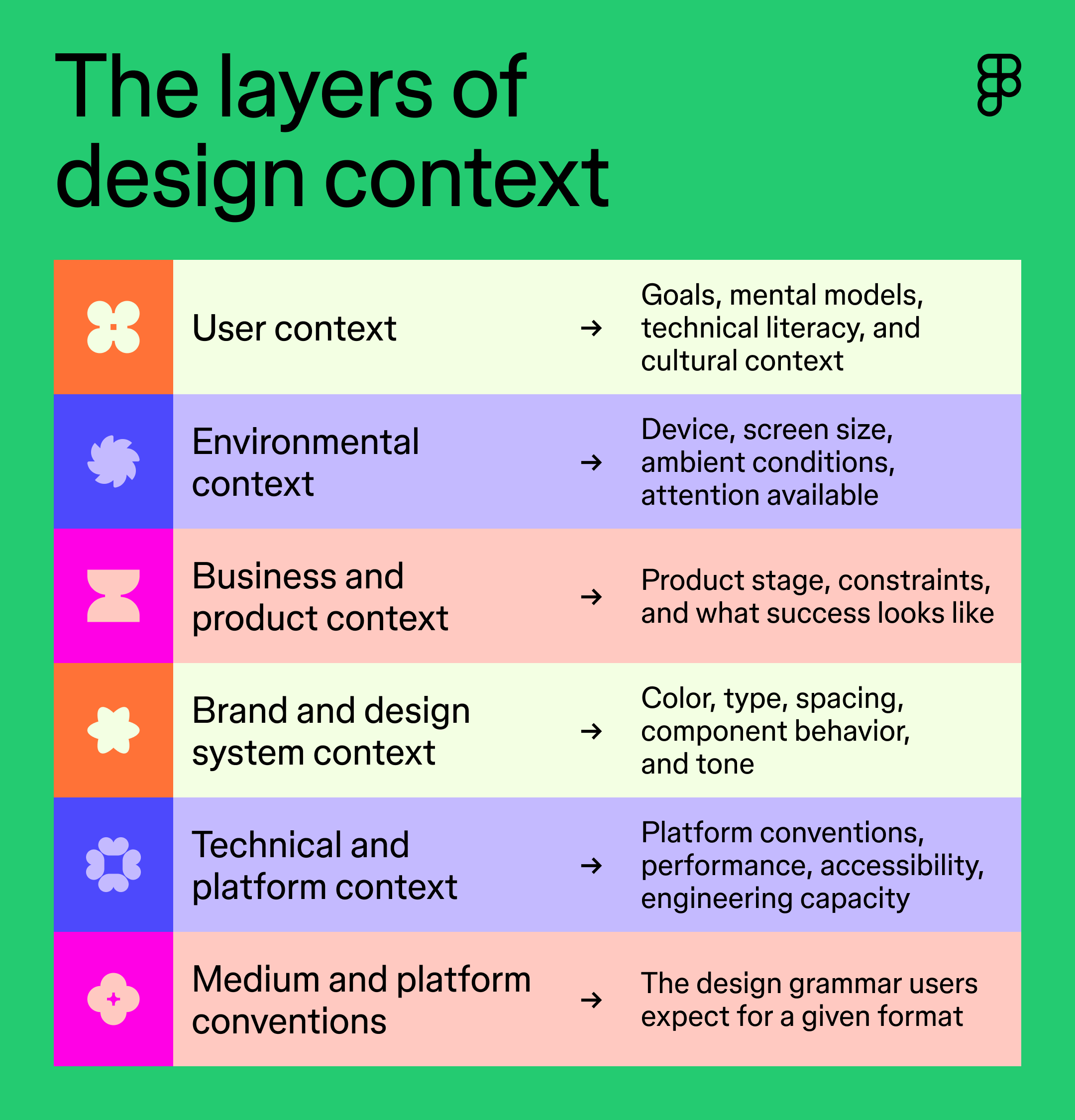
User context covers who’s using your product and what they’re trying to accomplish with it. It includes their goals, mental models, technical abilities, and even their emotional state at that moment. Getting this right is the foundation of good UX design.
For example, a mobile banking app built for first-time account holders needs very different design decisions than one built for active day traders, even though both are technically banking apps.
For global products, user context also includes cultural context. Colors, symbols, and interaction patterns carry different meanings across regions, and a design that reads as trustworthy in one market can read as confusing or even alarming in another.
Environmental context is about where and how your product actually gets used. Device type, screen size, ambient lighting, and available attention all shape what a design needs to do.
For example, a field service app used outdoors on a phone with one free finger requires different accommodations than a dashboard someone reviews on a laptop during a meeting.
Every design decision is made within a set of business constraints. What stage is the product at? What can the team realistically build this quarter? What does success actually look like?
A startup shipping an MVP and an enterprise product on version 12 both have valid design contexts—they’re just entirely different ones, and a design that ignores that mismatch tends to solve the wrong problem.
The PM field guide for the AI era puts this well:
Sherif Mansour, Head of AI at Atlassian, says a product team’s core job is keeping everyone aligned on “the shared brain of the customer context, the business context.” Without that shared understanding, teams end up prototyping solutions that skip over real constraints or repeat lessons the team already learned the hard way.
Your design system codifies the decisions your team has already made, including color, type, spacing, component behavior, and your brand’s tone. That history means designers don’t have to reintroduce the same questions on every project.
For AI tools, this layer matters more than almost any other. Without it, AI produces output that’s technically fine but visually and experientially disconnected from everything else you’ve shipped.
This is why design context matters; design systems paired with the right connections can become a key to more efficient AI workflows. The more context your system carries, the more an AI agent can make the right decisions directly instead of guessing at them.
Design that ignores technical reality creates rework down the line. Platform conventions, performance budgets, accessibility requirements, and engineering bandwidth are all part of design context. Good design works inside those constraints instead of pretending they don’t exist.
For example, a feed with autoplaying video and parallax scrolling might look impressive in a design file, but if it blows past the platform’s performance budget, engineering ends up stripping it down after launch. Designing within that budget from the start avoids the rework entirely.
Medium is related to environment, but it’s not the same thing. Environment refers to the physical conditions, while medium refers to the design conventions users already expect for a given format.
A native mobile app, a Web app, and a marketing email each have conventions that users expect without thinking about it. Design against those conventions, even with everything else right, and you create friction that’s hard to diagnose after the fact.
Connect your Figma files to AI coding tools through the MCP server, so the context living in your components and variables travels with them.
AI design tools amplify whatever you give them, good or bad. That makes design context a bigger deal than it used to be, and it applies just as much to AI design tools built for quick exploration as it does to full prototyping platforms.
Our 2025 AI report found that 78% of designers and developers say AI boosts their efficiency, but fewer than half feel it actually makes them better at their jobs. That gap is partly a design context problem. Efficiency without the right context just produces more output, faster, and more output isn’t the same as better work.
Our State of the Designer 2026 report backs this up from another angle—91% of designers say clear goals and expectations help them do their best work, even as they value creative freedom just as highly.
As one Italian freelance designer put it in the report, AI has automated a lot of surface-level design work, so “the value lies in systems thinking and the ability to translate complexity into clarity.”
Structure and context are what make good AI-assisted work possible. Experienced designers carry an enormous amount of design context that informs decisions, including years of user research, brand history, platform quirks, and hard-won lessons about what didn’t work last time. None of that transfers automatically to an AI tool. It only shows up in the output if someone makes it explicit first.
This isn’t a prompt engineering problem. Writing a cleaner prompt helps at the margins, but the real question is whether the design context exists anywhere accessible at all. How to prompt AI for design well starts with having something real to prompt it with.
Context disappears when nobody writes it down anywhere so that the next tool, or the next person, can find it. Here’s where to put it for accessibility:
Design context belongs in the same place as the work itself. In practice, that could mean a documentation frame pinned to the edge of your canvas, a short note added directly to a component, or a decision log kept in the file’s description panel. Written down this way in a Figma Design file, that context stays tied to the design itself, instead of living in a Slack thread nobody can find in six months.
Variables, component descriptions, and usage notes all carry intent alongside appearance, so the reasoning behind a decision travels with it.
A well-maintained design system is a documented design context, whether you think of it that way or not. Tokens encode decisions about color and spacing. Component names encode intent. Usage guidelines encode when and how something should be used. When an AI tool pulls from that system, it inherits the component’s context.
That inheritance isn’t automatic, though. Figma designer advocate Brett McMillin ran into this directly when he asked Claude to turn a folder of JSON files into Figma variables. It created one collection per file instead of the dark-and-light mode structure his team actually used. The MCP connection alone didn’t carry that convention. Running the same prompt again with his team’s documented structure attached did.
This applies directly to prototyping, too. Attaching a Figma Design file to a Figma Make prompt gives the AI your actual design system as a starting point, not a blank canvas it has to guess its way around.

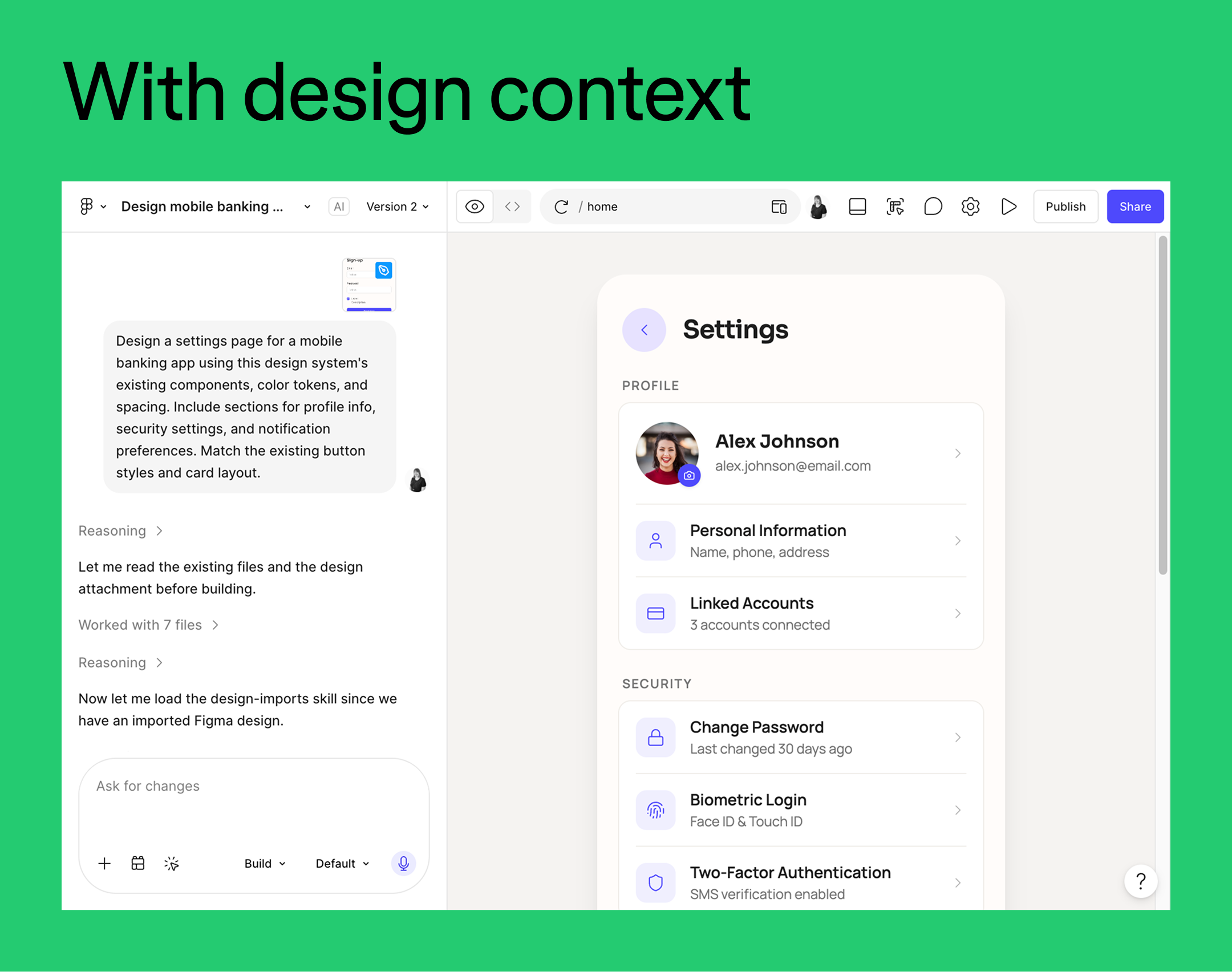

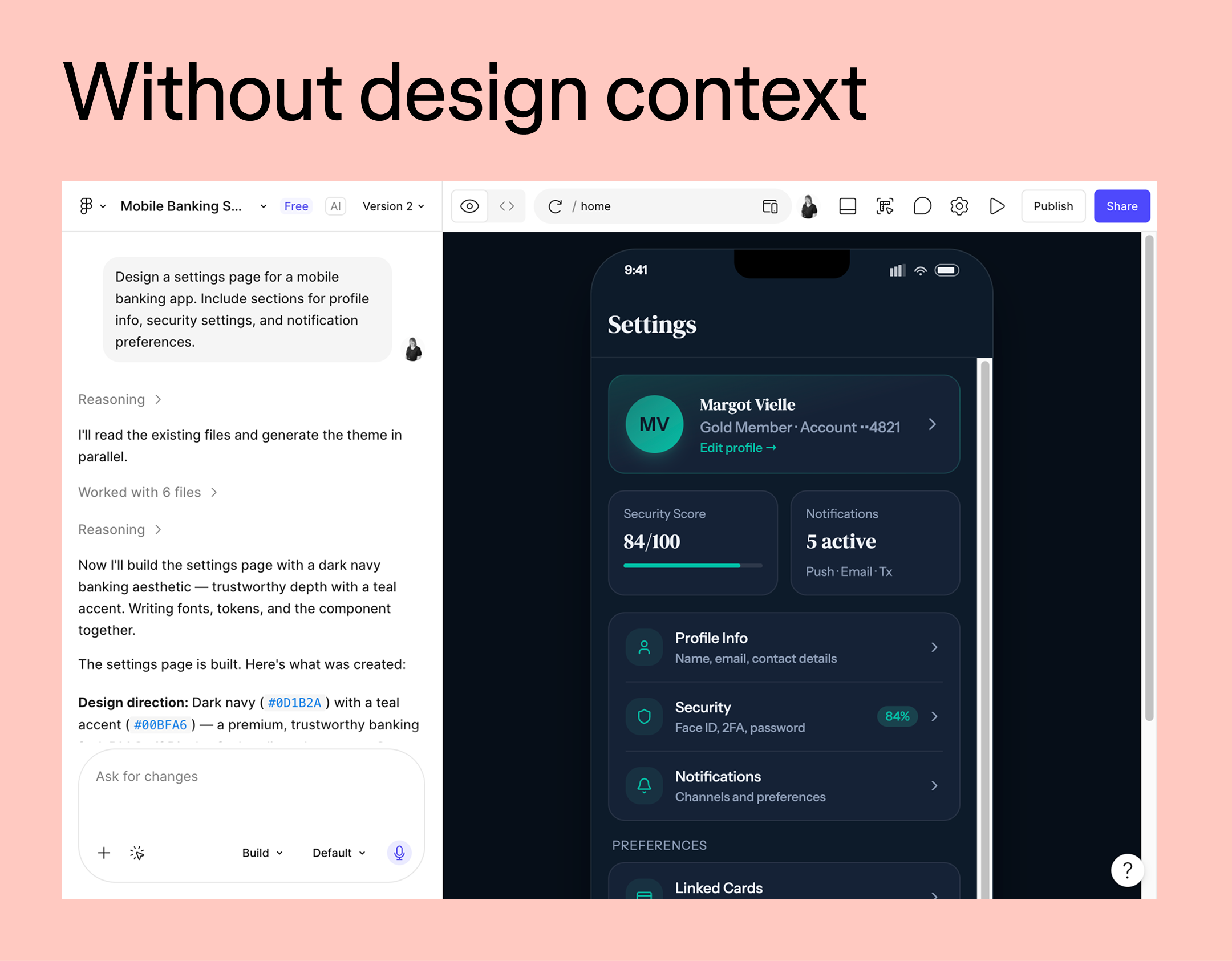
A good AI prompt looks a lot like a mini brief, featuring who’s using it, what they’re trying to do, what device they’re on, and what stage the product is at.
Writers do this instinctively, and designers exploring AI for product design need to build the same habit. It’s less about prompt engineering than it sounds. It’s really just surfacing what a good design critique would ask for anyway.
Handoff is where design context is most often lost, and where losing it costs the most. Dev Mode surfaces design context instead of just visual specs, and Code Connect goes further by attaching code-side context to design-side components, so the reasoning travels along with the spec.
For example, a card component in your design system connects to code and uses shared variables for spacing, color, and typography. The MCP server can hand an AI agent exactly what it needs to generate that card in production-ready code, without the agent searching your entire codebase to figure it out.
The PM field guide for the AI era describes the same mechanism from an engineering perspective. MCP pulls components, variables, and structure directly into a developer’s coding environment, so code generated from a prototype actually matches its intent.
That said, structure isn't everything. What MCP hands over is layers, components, variables, and states, not the reasoning behind them. Neither Claude nor any AI coding tool infers why a component behaves a certain way, only what it looks like and how it's put together. Some execution details are still catching up, too:
“Image generation or image upload via MCP is something that’s in the works now.”
— Brett McMillin, designer advocate at Figma
Design context documented this way can be read by developers and AI tools working downstream, but it doesn't replace judgment calls that live outside the file.
Templates are a practical, pre-packaged form of design context. The layout, hierarchy, and constraints for a given use case are already defined, giving an AI tool a far more structured starting point than an empty file.
Browse Figma’s template library for a starting point built around your specific product and workflow, rather than designing every constraint from scratch.
Design context that AI can actually use doesn't happen by accident. It’s built into your files, your design system, and your handoff process—one intentional decision at a time. Once you lay that foundation, AI stops guessing at your brand and starts building on it.
Here’s how to put it all together:
Figma’s MCP server connects your design files to AI coding tools, so the context in your components travels with them.
Learn how to use AI for product design 7 different ways. Turn your ideas into working prototypes faster with prompt-based design and collaborative creativity.

Curious how AI in design is changing the way teams work? See how tools like Figma make it easier to bring ideas to life with real-world examples.

We reviewed 9 AI prototyping tools for product and design teams. See how Figma Make and others help you go from prompt to interactive prototype in minutes.

Vibe coding combines mood-driven design with seamless coding to create immersive digital experiences that connect emotionally and function flawlessly.

Want to stay ahead of the curve? Learn about the latest Web design trends and how to apply them in Figma to build modern, user-friendly sites.

Avoid common design system scaling mistakes. Learn how to transition from a static library to a product infrastructure that aligns design and code at scale.